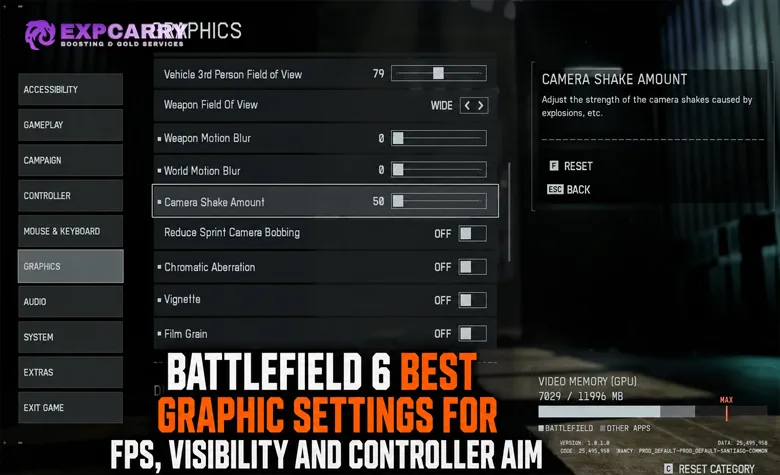
Battlefield 6 runs well on a surprisingly wide range of PCs, but the default presets are not the best way to maximize competitive visibility, stable frame time, and responsive aim. The strongest setup is a custom profile: keep textures and filtering high enough for a clean image, cut effects that add visual clutter, turn off screen-space reflections and cinematic camera effects, match your refresh rate correctly, and tune FOV and input separately from graphics quality. This guide gives three ready-made presets for low-end, mid-range, and high-end PCs, plus practical mouse and controller settings that can be tested in the Firing Range instead of copied blindly.
The recommendations are built around the current live Battlefield 6 settings menu, EA's latest PC and controller guidance, launch system targets, and public performance testing. They are meant to stay useful across seasons. Exact FPS will still vary by map, mode, destruction load, CPU, memory speed, driver version, and whether you use native resolution or an upscaler, so benchmark numbers below are reference points rather than guarantees.
Best Battlefield 6 Graphics Settings at a Glance
If you only want the competitive baseline, start by lowering the settings that EA itself identifies as relatively expensive or visually unnecessary. The official Battlefield 6 PC and controller settings guide recommends turning Undergrowth, Effects, Volumetric, Lighting, Local Light & Shadow, Sun Shadow, and Post Process Quality to Low when FPS is the priority. EA also notes that disabling Screen Space Reflections can make enemies easier to see in buildings or through water.
| Setting | Competitive baseline | Why |
|---|---|---|
| Texture Quality | Medium on 6 GB VRAM, High on 8 GB+ | Keeps surfaces readable without wasting VRAM on the weakest cards |
| Texture Filtering | High | Usually low performance cost and improves distant surface clarity |
| Mesh Quality | Low to Medium | Useful place to save CPU/GPU work without heavily damaging close-range clarity |
| Terrain Quality | Low to Medium | Reduces environmental load with limited competitive downside |
| Undergrowth Quality | Low | Improves FPS and reduces foliage clutter |
| Effects Quality | Low | Reduces expensive combat effects and visual noise |
| Volumetric Quality | Low | Smoke and atmospheric effects are expensive and can obscure targets |
| Lighting Quality | Low | EA lists it among the first settings to lower for FPS |
| Local Light & Shadow Quality | Low | Useful performance saving in interiors and destruction-heavy fights |
| Sun Shadow Quality | Low | Reduces shadow cost with limited effect on target recognition |
| Reflection Quality | Low | Little competitive value compared with its rendering cost |
| Screen Space Reflections | Off | Cleaner visibility in buildings and water according to EA |
| Post Process Quality | Low | Reduces cinematic processing and improves frame rate |
| World Motion Blur | 0 | Keeps moving targets sharper |
| Weapon Motion Blur | 0 | Reduces blur around recoil and weapon movement |
| Chromatic Aberration | Off | Removes color-fringing visual noise |
| Vignette | Off | Keeps edge visibility cleaner |
| Film Grain | Off | Removes intentional image noise |
| Weapon FOV | Wide | EA recommends it as a starting point for better peripheral visibility |
This is not a rule that every slider must stay on Low forever. Texture Quality and Texture Filtering are worth keeping higher when VRAM allows it because they improve image definition without adding the same kind of clutter as volumetrics, shadows, reflections, or motion effects. The three presets below use that distinction instead of simply setting the entire game to Low.
Three Battlefield 6 Presets for Low, Mid and High-End PCs
Use the preset closest to your hardware as a starting point, then adjust resolution and upscaling around the FPS floor you actually want to hold. The table keeps the expensive visibility settings low across all three profiles while allowing stronger systems to spend extra headroom on textures, geometry, and image quality.
Preset 1: Best Settings for a Low-End PC
This profile is for hardware around Battlefield 6 minimum specification through older mainstream GPUs: RTX 2060, RX 5600 XT, Arc A380, GTX 1650 Super-level cards, RX 570-class hardware with aggressive scaling, or CPUs close to the official minimum. The priority is a stable 60 FPS target rather than visual fidelity.
| Setting | Low-End PC | Mid-Range PC | High-End PC |
|---|---|---|---|
| Resolution | 1080p | 1080p high refresh or 1440p | 1440p native/Quality or 4K Quality |
| Texture Quality | Low or Medium | High on 8 GB VRAM, Medium if VRAM pressure appears | High or Ultra |
| Texture Filtering | Medium or High | High | High or Ultra |
| Mesh Quality | Low | Medium | High |
| Terrain Quality | Low | Medium | High |
| Undergrowth Quality | Low | Low | Low |
| Effects Quality | Low | Low | Low |
| Volumetric Quality | Low | Low | Medium |
| Lighting Quality | Low | Low | Medium |
| Local Light & Shadow | Low | Low | Medium |
| Sun Shadow Quality | Low | Low | Medium |
| Shadow Filtering | PCF | PCF | PCSS if performance stays comfortable |
| Reflection Quality | Low | Low | Low or Medium |
| Screen Space Reflections | Off | Off | Off |
| Post Process Quality | Low | Low | Low or Medium |
| Screen Space AO & GI | Off or GTAO Low | Off or GTAO Low | GTAO High |
| High Fidelity Objects Amount | Low | Medium | High |
| Upscaling | Quality, then Balanced if needed | Native if stable, otherwise Quality | Native or Quality |
| V-Sync | Off | Off | Off |
| Frame Rate Limit | 60 if CPU simulation is unstable | Optional stable cap | Optional below unstable peaks |
EA's official minimum target is 1080p at 30 FPS on Low with an RTX 2060, RX 5600 XT, or Arc A380-class GPU. That specification is a floor, not the competitive goal. Independent testing later showed how scalable the engine can be: PC Gamer reported an RX 570 4 GB reaching roughly 60 FPS at 1080p with Low settings and 60 percent resolution scaling. That is useful evidence that old cards can run the game, but the image-quality cost is significant and should not be treated as the ideal preset for a modern GPU.
Start with upscaling on Quality because target visibility matters in Battlefield. If the GPU still cannot hold your desired floor, move to Balanced before dropping fixed resolution much further. Avoid frame generation as the first rescue tool when base FPS is very low. Generated frames can improve displayed smoothness, but they do not replace a healthy base frame rate for input responsiveness.
CPU-limited low-end systems need a frame cap
Low graphics settings do not automatically solve every performance problem. EA has specifically warned that CPUs near the minimum specification can fail to maintain the game's 60 Hz simulation rate, producing rubberbanding, hit-registration symptoms, or latency-like behavior. The official recommendation is to enable the Performance Overlay under Graphics, Advanced, Modify and monitor the simulation rate. If it drops, capping FPS can reduce CPU pressure.
This is why an unstable 90-120 FPS counter can feel worse than a locked 60 or 75 on an older processor. If GPU usage is low while CPU threads are saturated and the simulation graph is unstable, stop lowering visual settings blindly. A reasonable cap can create more consistent frame delivery.
Preset 2: Best Settings for a Mid-Range PC
This is the best general-purpose preset for systems around RTX 3060 Ti, RTX 4060, RTX 5060, RX 6700 XT, RX 7600, Arc B580, and comparable hardware. Target 1080p high refresh or 1440p around 60-100 FPS depending on GPU and CPU.
EA's recommended PC specification targets 1440p 60 FPS on High or 1080p above 80 FPS on Low with RTX 3060 Ti, RX 6700 XT, or Arc B580-class hardware. The official PC specification page also makes clear that those targets use native rendering. That is important because upscaling gives mid-range cards extra headroom without forcing every quality setting down.
Real 2026 testing shows the spread between mainstream GPUs. In a ComputerBase low-end GPU comparison at 1080p with DLSS or FSR Quality, the RTX 3060 averaged 54.8 FPS, RTX 4060 averaged 68.1 FPS, RTX 5060 averaged 86.6 FPS, RX 7600 averaged 64.8 FPS, and Arc B580 averaged 76.4 FPS. Those numbers come from a controlled benchmark setup, not every multiplayer map, but they are useful anchors for deciding whether your target should be 60, 75, 90, or 120 FPS.
For competitive play, spend the extra performance on resolution clarity before raising shadows or reflections. A sharper 1440p Quality-upscaled image with low effects is usually more useful than a blurrier 1080p image with prettier lighting. If you want help matching sensitivity, FOV, and recoil practice to your actual hardware, the verified Battlefield 6 coaching option includes settings and aim review as part of its training workflow.
Preset 3: Best Settings for a High-End PC
High-end hardware should not default to Overkill just because it can. For competitive visibility, the goal is to preserve native or near-native image quality while refusing expensive effects that do not help identify enemies. This preset suits RTX 4070, RTX 5070, RX 7800 XT and faster cards at 1440p, while RTX 4080, RX 7900 XTX, RTX 5080, and above can move toward 4K or very high refresh targets.
EA's Ultra specification targets 4K 60 FPS on Ultra or 1440p 144 FPS on Medium with an RTX 4080 or RX 7900 XTX-class GPU. The fact that EA itself pairs 1440p 144 FPS with Medium rather than maximum settings is the key lesson: high refresh is more valuable than visual excess in a multiplayer shooter.
ComputerBase's 2026 native 1440p data shows why resolution still matters even on strong cards. Their test recorded about 57.2 FPS for RTX 4070, 72.4 FPS for RTX 5070, 79.1 FPS for RX 9070, 87.7 FPS for RX 9070 XT, 89.7 FPS for RTX 5070 Ti, and 100.2 FPS for RTX 5080 in the tested quality configuration. Upscaling and lower competitive settings can lift those numbers substantially, but native 1440p is not free.
Real Battlefield 6 FPS Tests and What They Actually Mean
Benchmark tables are useful only when the test conditions are kept attached to the number. Do not compare an RX 570 at 60 percent resolution scaling with an RTX 4060 at 1080p Quality upscaling and pretend they are the same workload. The references below show how performance scales across three realistic hardware bands.
| GPU reference | Test condition | Average FPS | How to use the result |
|---|---|---|---|
| RX 570 4 GB | 1080p, Low, about 60% resolution scale | About 60 | Extreme low-end proof that aggressive scaling can reach playable performance |
| RTX 3060 12 GB | 1080p, DLSS Quality in 2026 ComputerBase test | 54.8 | Use Low custom settings or Balanced upscaling for a safer 60 FPS floor |
| RTX 4060 8 GB | 1080p, DLSS Quality in 2026 ComputerBase test | 68.1 | Good 60-75 FPS baseline with room for competitive custom tuning |
| RTX 5060 8 GB | 1080p, DLSS Quality in 2026 ComputerBase test | 86.6 | Strong 1080p high-refresh starting point |
| RTX 4070 12 GB | 1440p native in 2026 ComputerBase test | 57.2 | Quality upscaling is useful if you want well above 60 FPS |
| RTX 5070 12 GB | 1440p native in 2026 ComputerBase test | 72.4 | Competitive custom settings can push comfortably beyond native results |
| RTX 5080 16 GB | 1440p native in 2026 ComputerBase test | 100.2 | High-refresh 1440p is realistic without relying on maximum image-quality settings |
The mainstream 1080p figures come from the ComputerBase 2026 low-end GPU benchmark, while the native 1440p figures come from their broader Battlefield 6 GPU testing. Multiplayer can be heavier than a repeatable benchmark scene because destruction, player density, vehicles, and CPU load change continuously. Treat a benchmark average as the center of a performance range, not the worst-case frame rate.
Explore services related to this guide, selected from our Battlefield 6 catalog.
View All Battlefield 6 Services

Best Visibility and FOV Settings
Competitive clarity depends on both image cleanup and camera framing. Remove effects that hide motion first, then set a field of view that improves awareness without making distant infantry too small to identify.
Best Visibility Settings for Battlefield 6
Visibility is more than FPS. A high frame rate helps tracking, but screen effects can still hide movement in smoke, interiors, water, and bright transitions. EA's own competitive recommendations align closely with what serious FPS players usually want: less blur, less camera movement, fewer cinematic filters, and a wide but controlled field of view.
- World Motion Blur: 0.
- Weapon Motion Blur: 0.
- Camera Shake Amount: minimum or as low as comfortable.
- Chromatic Aberration: Off.
- Vignette: Off.
- Film Grain: Off.
- Screen Space Reflections: Off.
- Weapon FOV: Wide.
- Soldier HUD Motion: Off.
- Vehicle HUD Motion: Off.
Turning effects down does not make enemy models magically brighter. Battlefield Studios has acknowledged that soldier visibility remains an active design issue in some lighting conditions. The point of these settings is to remove avoidable clutter so your eyes spend less time separating post-processing from actual movement.
Best FOV for Battlefield 6
EA recommends 110 FOV as a starting point and explicitly warns that higher is not always better. A wider field of view increases peripheral awareness but makes distant targets look smaller. For most 16:9 desktop setups, 100-110 is the safest competitive range; 110 is the official starting recommendation, while players who focus on long-range precision may prefer slightly lower values.
Recommended FOV ranges
Use 100-105 if long-range target size matters more than peripheral vision. Use 105-110 for the best general balance. Use 110-115 only if you are comfortable with smaller enemies and play close to the monitor. Values near maximum can feel fast and spacious, but they make distant infantry harder to read.
Keep Weapon FOV on Wide. This changes how large the weapon model appears without needing to sacrifice the same amount of world-space awareness. The result is less visual obstruction around the center of the screen.
Best Mouse, Controller and Input Latency Settings
Graphics and aim settings need to work together. Use EA's current values as calibration points, then tune sensitivity and deadzones on your own device while keeping render latency and frame time stable.
Best Mouse Sensitivity and Input Settings
There is no universal best mouse sensitivity because DPI, mouse pad size, wrist versus arm aim, monitor distance, and previous muscle memory all matter. EA recommends Infantry Mouse Aim Sensitivity 20 and Zoom Sensitivity Coefficient 178 as starting values, then tells players to test in the Firing Range. That is the correct way to present them: starting points, not competitive laws.
A practical mouse setup
Start with 800 DPI and adjust Infantry Mouse Aim Sensitivity until a comfortable swipe gives the rotation you want, or keep your existing DPI if you already have years of muscle memory. Community discussion commonly lands around roughly 35-50 cm per 360 degrees for Battlefield-style tracking, but that is player preference rather than an EA standard.
- Raw mouse input: Use the game's direct mouse path where available and avoid adding operating-system acceleration.
- Infantry Mouse Aim Sensitivity: EA starting point 20; lower or raise from there.
- Zoom Sensitivity Coefficient: EA starting point 178.
- Vertical Mouse Aim Ratio: Keep consistent unless you have a specific recoil-control preference.
- V-Sync: Off for lower latency.
- Frame Rate Limiter: Optional; use a stable cap if frametimes or CPU simulation become erratic.
Do not change sensitivity every bad match. Test one value in the Firing Range, then use it for several sessions before deciding it is wrong. Constant adjustment destroys the consistency you are trying to build.
Best Controller Settings and Aim Assist
Controller aim has changed since launch, so old guides can be misleading. Update 1.1.2.0 reset Aim Assist to the Open Beta tuning after EA found that stronger long-range slowdown made high-zoom aiming less smooth. Later updates also improved stick response, Dynamic response behavior, deadzone tools, and high-polling input consistency.
EA's current official starting range is much more useful than a random copied setup. Start with Infantry Aim Sensitivity 30-40, FOV 110, Zoom Sensitivity Coefficient 178, Infantry Aim Assist 100, Slowdown 100, Vertical Aim Ratio 56, and Aiming Left/Right Acceleration around 50-70. Then tune from the Firing Range.
Recommended controller baseline
- Infantry Aim Sensitivity: 30-40.
- FOV: 105-110.
- Zoom Sensitivity Coefficient: 178 as the official starting point.
- Infantry Aim Assist: 100 to begin testing.
- Infantry Aim Assist Slowdown: 100 to begin testing.
- Zoom Snap: 100 as part of EA's current controller starting point; test it together with Aim Assist and Slowdown rather than treating it as a separate universal value.
- Aiming Left/Right Acceleration: 50-70.
- Vertical Aim Ratio: 56.
- Stick Deadzone: 0-5 if the controller has little or no drift.
The deadzone recommendation is especially important. EA says 0-5 is a good range when the stick has little drift. Use the in-game Deadzone Draw Tool and stick debug overlay rather than copying somebody else's controller values. The correct deadzone is the smallest value that does not produce unwanted movement on your own hardware.
Players who are still unlocking the weapons and attachments needed to test recoil properly can use the verified Battlefield 6 weapon leveling option for progression. The aim settings themselves should still be calibrated on your own input device.
How to Reduce Input Latency
Input latency is the combined delay from mouse or stick movement to the visible response on screen. Graphics settings matter because a lower, more stable frame time shortens that chain. Display settings matter because V-Sync and refresh behavior can add delay. Controller tuning matters because excessive deadzones and acceleration can make the game feel slow even when render latency is low.
- Use the highest correct monitor refresh rate. Check the Display menu rather than assuming Windows and the game agree.
- Turn V-Sync off for competitive play. EA specifically recommends this to avoid lag.
- Target stable FPS, not the highest temporary peak. A frame cap can help when CPU simulation is overloaded.
- Use NVIDIA Reflex if available on your system. Keep frame generation separate from latency testing because displayed FPS and input response are not the same thing.
- Reduce controller deadzones. Use 0-5 only if the stick remains stable without drift.
- Turn off motion blur and camera shake. These do not change raw latency but make motion response easier to read.
Battlefield 6 has continued receiving input and settings work after launch. Update 1.3.2.0 targeted aiming stutter on some high-polling-rate devices and PC configurations. The current Update 1.4.2.0, released on August 18, 2026, adds the ADS Dispersion Crosshair for reading weapon spread and fixes Weapon FOV behavior when Narrow is selected. If aiming or visibility suddenly feels different after a patch, recheck the settings page and patch notes before rebuilding your sensitivity from memory.
Upscaling, Frame Generation and High-End Quality
Upscaling and premium quality settings should be used to protect a clear base image and stable frame time, not simply to maximize the FPS counter or every visual slider.
Should You Use DLSS, FSR or XeSS?
Use an upscaler when it gives you a meaningful FPS increase without making distant infantry too soft. Quality mode is the best first choice at 1440p and 4K. At 1080p, native rendering can look sharper, so only use Quality or Balanced if the GPU needs the extra headroom.
For low-end hardware, Balanced can be a reasonable compromise. Performance mode should be reserved for situations where the native render resolution would otherwise make the game unplayable, especially at 1080p. High-end hardware should prefer native or Quality because enemy recognition benefits from detail.
Frame generation is not the same as lower latency
Frame generation increases displayed frame rate by inserting generated frames between rendered frames. It can make movement look smoother on strong GPUs, but it does not replace a high base frame rate. For competitive multiplayer, first make sure the base game is already responsive. Then decide whether additional generated smoothness is worth using.
Why Overkill Is Usually the Wrong Competitive Preset
Battlefield 6 includes very high quality options because the engine scales well, but competitive settings should be judged by information gained per frame lost. Hardware Unboxed tested 43 GPUs and showed that the game scales significantly across presets, while visual differences between High, Ultra, and Overkill are often much smaller than the performance differences.
Use expensive settings only when they improve something you actually notice. Texture Quality is a reasonable place to spend VRAM. Shadows, volumetrics, reflections, and cinematic post-processing are much harder to justify in a multiplayer fight. The high-end preset above is deliberately not a screenshot preset.
How to Test Settings and Pick an FPS Target
A useful optimization pass needs a repeatable test and a realistic target. First verify frame time and simulation stability, then decide whether 60, 120, or 144+ FPS is the right goal for the hardware.
How to Test Your Settings Properly
Changing twenty options and jumping into one random Conquest match does not tell you which setting helped. Use a repeatable process so FPS, clarity, and aim can be compared rather than guessed.
- Set the correct resolution and refresh rate first.
- Apply the hardware preset closest to your PC.
- Open the Firing Range. Check image clarity, FOV, hipfire sensitivity, ADS tracking, and controller deadzone.
- Enable the Performance Overlay. Watch FPS, frame time, and simulation behavior.
- Play one large multiplayer map. Test destruction, vehicles, smoke, and player density.
- Change only one graphics group at a time. Start with resolution/upscaling, then shadows and effects, then object detail.
- Keep the final profile for several sessions. Do not rebuild it after one bad round.
If your PC performs well but your aim still feels inconsistent, graphics may no longer be the problem. The Battlefield 6 Update 1.3.3.0 gunplay and netcode guide covers an important earlier round of recoil and networking changes that can affect how shooting feels even with identical settings.
Best Settings for 60, 120 and 144+ FPS Targets
The correct preset depends on the floor you want to protect. A 60 FPS target can spend more on texture and object detail. A 144 FPS target should remove almost every nonessential effect and use upscaling more aggressively if native resolution creates large dips.
- 60 FPS target: High textures, High filtering, Medium mesh and terrain, Low effects, Low volumetrics, Low shadows, SSR Off, Quality upscaling if needed.
- 120 FPS target: Medium/High textures, Medium mesh, Low terrain and environmental effects, SSR Off, Quality or Balanced upscaling depending resolution.
- 144+ FPS target: Treat Low custom as the baseline, preserve texture clarity, use a stable CPU, and cap below unstable peaks if simulation rate suffers.
EA's own specification table is a useful reality check. RTX 3060 Ti-class hardware is positioned around 1440p 60 or 1080p 80+, while RTX 4080/RX 7900 XTX-class hardware is the official 1440p 144 FPS tier at Medium. If your GPU is two generations below that, expecting locked 1440p 144 native at high settings is not a settings problem.
Common Battlefield 6 Settings Mistakes
Most performance problems come from chasing the wrong number or changing too many variables at once. The settings menu gives enough control to fix many issues, but it also makes it easy to create contradictory goals.
- Using maximum FOV because higher sounds better: distant targets become smaller and harder to identify.
- Leaving Screen Space Reflections on: it costs performance and can make visibility worse in exactly the scenes where clarity matters.
- Using Overkill while targeting high refresh: visual gains are small compared with the lost headroom.
- Turning every texture setting to Low on an 8-16 GB GPU: this hurts image clarity without solving CPU bottlenecks.
- Using Frame Generation to hide a poor base frame rate: smooth animation is not the same as low input latency.
- Ignoring the simulation graph: CPU overload can feel like network lag or bad hit registration.
- Copying somebody else's controller deadzone: deadzone must match your actual stick drift.
- Changing sensitivity every session: consistency matters more than finding a mythical perfect number.
Players who mainly care about unlocking broader loadout access while they practice a stable settings profile can use the verified Battlefield 6 Career Rank option. For self-play, keep the same graphics and aim profile long enough to separate progression frustration from actual input problems.
Battlefield 6 Graphics Settings FAQ
These answers cover the settings questions that matter most for FPS, visibility, and aim consistency.
What are the best Battlefield 6 settings for FPS?
Use a Custom preset, keep Undergrowth, Effects, Volumetric, Lighting, Local Light and Shadow, Sun Shadow, Reflections, and Post Process on Low, turn Screen Space Reflections Off, and lower resolution or use Quality/Balanced upscaling only when the GPU still misses your target.
What is the best Battlefield 6 FOV?
EA recommends 110 as a starting point. A 100-110 range is a strong competitive baseline because it preserves peripheral vision without making distant targets excessively small.
Should I use Weapon FOV Wide?
Yes as a starting point. EA recommends Wide because it reduces how much screen space the weapon occupies and improves peripheral visibility.
Should I turn V-Sync off?
Yes for the lowest input delay. EA specifically recommends V-Sync Off in its PC settings guide. Use a frame limiter or variable-refresh setup separately if you need smoother presentation.
Should Screen Space Reflections be off?
Yes for competitive visibility. EA notes that some players find enemies easier to see in buildings and through water with Screen Space Reflections disabled.
What controller sensitivity does EA recommend?
EA suggests Infantry Aim Sensitivity 30-40, Zoom Sensitivity Coefficient 178, Vertical Aim Ratio 56, and Aiming Left/Right Acceleration around 50-70 as starting values.
What controller deadzone should I use?
EA recommends 0-5 when the controller has little or no drift. Increase it only until unwanted stick movement disappears.
What mouse sensitivity should I use?
EA lists Infantry Mouse Aim Sensitivity 20 and Zoom Sensitivity Coefficient 178 as starting points. Your final value should be calibrated around DPI, mouse pad space, and existing muscle memory.
Does lowering graphics always fix lag?
No. EA has documented cases where minimum-spec CPUs cannot maintain the 60 Hz simulation rate even on Low. Check the Performance Overlay and consider an FPS cap if the system is CPU-limited.
Is DLSS or FSR Performance good for competitive play?
Use it only when the GPU needs the performance. Quality is the better starting point because distant infantry remain sharper. At 1080p, aggressive Performance upscaling can make targets noticeably softer.
Should I use Frame Generation?
Use it for smoother presentation only after the base frame rate is healthy. It increases displayed FPS but does not replace a responsive native or upscaled base frame rate.
Conclusion
The best Battlefield 6 graphics profile is not the prettiest preset and not a blanket Low configuration. Keep textures and filtering high enough for a sharp image, lower undergrowth, effects, volumetrics, lighting, shadows, reflections, and post-processing, disable Screen Space Reflections and cinematic filters, and use Wide Weapon FOV. Low-end systems should protect a stable 60 FPS floor, mid-range systems should target clean 1080p high refresh or 1440p with Quality upscaling, and high-end systems should spend extra performance on resolution and stable frame time instead of Overkill effects.
For aim, start from EA's FOV 110 recommendation, test mouse sensitivity in the Firing Range, use controller deadzones only as high as your hardware requires, and treat aim assist values as a starting baseline rather than a universal competitive secret. Monitor real frame time and simulation performance, not just the top FPS number. Once graphics, FOV, and input stop changing every session, your visibility and muscle memory become much easier to judge.