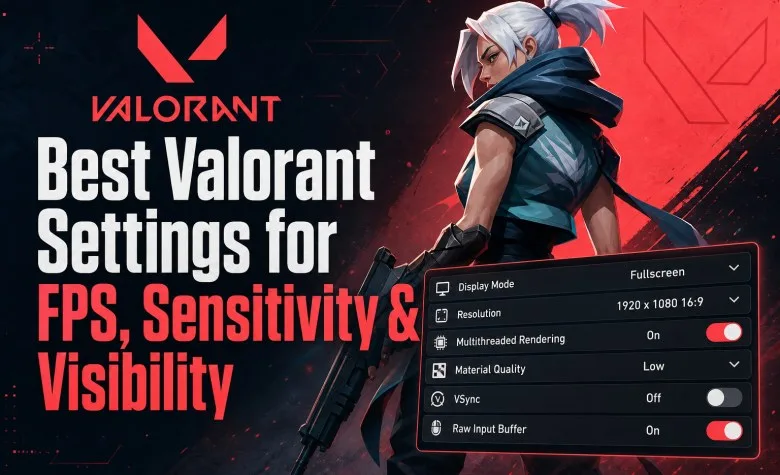
The best VALORANT settings prioritize three things: stable FPS, low input latency and clear information. For most competitive players, that means Fullscreen mode, low graphics settings, VSync off, Multithreaded Rendering on, Raw Input Buffer on, a low-to-medium sensitivity and a minimap that shows as much useful information as possible.
If you want one simple starting setup, use 800 DPI with 0.30 sensitivity for 240 eDPI, native 16:9 resolution, low graphics quality, HRTF with stereo headphones and a stable frame-rate target above your monitor's refresh rate.
| Setting | Recommended value | Why |
|---|---|---|
| Display Mode | Fullscreen | Best starting point for consistent performance and latency |
| Resolution | Native 16:9 | Maximum clarity; Riot recommends 16:9 |
| Multithreaded Rendering | On | Can improve performance on supported systems |
| VSync | Off | Avoids additional synchronization latency |
| Material Quality | Low | Reduces unnecessary GPU load |
| Texture Quality | Low | Prioritizes FPS over visual detail |
| Detail Quality | Low | Reduces visual clutter and load |
| UI Quality | Low | Little competitive reason to increase it |
| Vignette | Off | Keeps peripheral image cleaner |
| Bloom | Off | Removes unnecessary glow effects |
| Distortion | Off | Cleaner image |
| Cast Shadows | Off | Extra FPS and less visual noise |
| Raw Input Buffer | On | Current default and recommended input path |
| NVIDIA Reflex | On + Boost | Useful for reducing render latency on supported NVIDIA GPUs |
| AMD Anti-Lag 2 | On if supported | Reduces latency in GPU-bound scenarios |
| HRTF | On with stereo headphones | Improves positional audio for many players |
Best Valorant Mouse Sensitivity
There is no universally correct sensitivity, but VALORANT rewards precise first-shot corrections and crosshair placement more than extreme camera movement. That is why professional settings tend to cluster around relatively low eDPI values.
A practical starting point is 240 eDPI.
| Mouse DPI | Valorant sensitivity | eDPI |
|---|---|---|
| 400 | 0.60 | 240 |
| 800 | 0.30 | 240 |
| 1600 | 0.15 | 240 |
| 3200 | 0.075 | 240 |
All four settings produce the same eDPI. The physical feel may still differ slightly depending on mouse hardware and polling behavior, but the in-game turning speed is equivalent.
What Is eDPI in Valorant?
eDPI allows you to compare sensitivity settings that use different mouse DPI values.
The formula is:
eDPI = Mouse DPI × In-game Sensitivity
For example:
800 DPI × 0.30 sensitivity = 240 eDPI
This is more useful than comparing sensitivity alone. A player using 0.15 at 1600 DPI has the same eDPI as someone using 0.30 at 800 DPI.
What eDPI Do Valorant Pros Use?
Current large professional databases place the median VALORANT sensitivity roughly in the low-to-mid 200 eDPI range. Individual players still vary significantly, so a pro average should be treated as a reference rather than a required target.
Our recommended test range is:
- 200–240 eDPI: more controlled, good for small corrections;
- 240–300 eDPI: balanced range for most players;
- 300–360 eDPI: faster turning while remaining manageable;
- above 400 eDPI: viable, but usually requires stronger fine mouse control.
If you constantly overshoot heads, lower your sensitivity by around 5–10%. If you repeatedly run out of mousepad when clearing close angles, increase it slightly.
Do not change sensitivity after every bad game. Use one value for several sessions before deciding whether it is actually wrong.
Explore services related to this guide, selected from our Valorant catalog.
View All Valorant Services
Best DPI for Valorant
800 DPI is our simplest recommendation because it is widely used, works well with modern mice and makes sensitivity calculations easy.
1600 DPI is equally valid if you prefer it. Just halve the in-game sensitivity to maintain the same eDPI.
For example:
- 800 DPI × 0.30 = 240 eDPI;
- 1600 DPI × 0.15 = 240 eDPI.
DPI itself is not a skill multiplier. The resulting eDPI and your ability to control it matter more.
Best Scoped and ADS Sensitivity
Start with:
- Scoped Sensitivity Multiplier: 1.0
- ADS Sensitivity Multiplier: 1.0
Many professional players stay close to 1.0 because it keeps scoped aiming predictable relative to the base setting.
Only change the multiplier after your normal sensitivity already feels stable. If Operator micro-adjustments consistently feel too fast, reducing Scoped Sensitivity slightly can make sense.
Should Raw Input Buffer Be On?
Yes.
Riot removed the beta label from Raw Input Buffer in Patch 7.12 and changed its default value to On for new configurations.
Unless you are troubleshooting a specific mouse issue, leave Raw Input Buffer enabled.
Best Valorant Video Settings for FPS
| Graphics option | Recommendation |
|---|---|
| Multithreaded Rendering | On |
| Material Quality | Low |
| Texture Quality | Low |
| Detail Quality | Low |
| UI Quality | Low |
| Vignette | Off |
| VSync | Off |
| Anti-Aliasing | None or MSAA 2x if you have FPS headroom |
| Anisotropic Filtering | 4x |
| Improve Clarity | On if it does not affect stable FPS |
| Experimental Sharpening | Off |
| Bloom | Off |
| Distortion | Off |
| Cast Shadows | Off |
Riot itself recommends lowering Material, Texture, Detail and UI Quality when diagnosing low client FPS and also identifies Improve Clarity, Experimental Sharpening, Bloom, Distortion and Cast Shadows as settings that can be disabled for performance troubleshooting.
Should Multithreaded Rendering Be On?
Yes, if the option is available on your system.
Riot added Multithreaded Rendering specifically to improve performance in situations where rendering many visible objects creates CPU-side workload.
If your hardware supports it, leave it enabled unless you are diagnosing a specific performance problem.
Best Resolution for Valorant
Use your monitor's native 16:9 resolution unless you have a concrete reason to lower it.
For a typical Full HD monitor:
1920×1080, Fullscreen, highest available refresh rate.
Riot currently recommends 16:9 for the best in-game experience and officially supports common resolutions such as 1280×720, 1600×900, 1920×1080 and 2560×1440.
If your PC cannot maintain your desired FPS, lowering resolution can reduce GPU load. Do not use a low or stretched resolution solely because a professional player does.
Does Stretched Resolution Give an Advantage?
Treat stretched resolution as a visual preference, not a required competitive setting.
It can change how the HUD, crosshair and displayed image feel, and lowering the rendered resolution can improve FPS on GPU-limited systems. However, you should not assume that copying a professional player's stretched setup automatically improves aim.
Start with native resolution. Change only when you understand what problem you are solving.
What FPS Should You Target?
Your goal should be stable FPS with low frame-time variance, not simply the highest peak number shown in the corner.
As a practical target:
| Monitor | Good in-game FPS target |
|---|---|
| 60 Hz | 120+ FPS if hardware allows |
| 120/144 Hz | 180–240+ FPS |
| 165 Hz | 200–240+ FPS |
| 240 Hz | 300+ FPS if stable |
| 360 Hz+ | As high and stable as your system can sustain |
These are practical targets, not Riot requirements. A stable 220 FPS generally feels better than constantly jumping between 180 and 400.
Should You Limit FPS?
There are two sensible approaches.
For most players, set the in-game FPS limit to a value your PC can maintain consistently and keep it comfortably above your monitor refresh rate.
If your system can maintain extremely high frame rates without temperature, noise or frame-time problems, running uncapped is also valid for minimum latency.
Menus and background FPS can be capped much lower because they provide no competitive benefit.
Best NVIDIA Reflex Setting
If you use a compatible NVIDIA GPU, our competitive starting point is:
NVIDIA Reflex Low Latency: On + Boost
Reflex is designed to reduce rendering latency. On laptops or systems where Boost creates unnecessary heat or clock behavior, test normal On as well.
Best AMD Anti-Lag 2 Setting
AMD Anti-Lag 2 support was added to VALORANT in Patch 12.09 in 2026.
If you have compatible AMD hardware and sufficiently recent drivers, enable it when available. Riot states that it reduces input latency in certain GPU-bound scenarios.
If the option is unavailable, do not try to force it through unofficial tools.
Should VSync Be On?
For competitive play, our recommendation is Off.
VSync can eliminate visible tearing, but synchronization can also add latency depending on the setup.
If tearing bothers you significantly, test your monitor's adaptive-sync setup separately rather than automatically enabling every synchronization option.
Best Minimap Settings
| Minimap option | Recommendation |
|---|---|
| Rotate | On |
| Fixed Orientation | Based on Side |
| Keep Player Centered | Off |
| Minimap Size | 1.1–1.2 |
| Minimap Zoom | 0.85–0.95 |
| Minimap Vision Cones | On |
| Show Map Region Names | Always |
The most important principle is visibility. You should be able to see enough of the map to understand teammate positions, utility and rotations without constantly opening the full map.
Keeping Player Centered off usually gives you more useful map context.
Best Enemy Highlight Color
Our starting recommendation is Yellow (Deuteranopia).
Many competitive players find yellow outlines easy to identify against VALORANT's map environments. However, this is strongly dependent on your vision, monitor and color configuration.
If yellow is harder for you to track than the default red, use red. Visibility matters more than copying a pro setting.
Best Valorant Audio Settings
Footsteps, reloads, abilities and directional information are critical, so audio settings should reduce unnecessary processing and distractions.
| Audio setting | Recommendation |
|---|---|
| Output Device | Your actual headphones |
| Speaker Configuration | Stereo when using VALORANT HRTF |
| HRTF | On for headphones |
| Third-party spatial audio | Do not stack with HRTF |
| Sound Effects | High enough to hear gameplay clearly |
| Music | Low or Off for fewer distractions |
| Voice Chat | Balanced so teammates do not cover footsteps |
Should HRTF Be On?
If you use normal stereo headphones, yes, test HRTF On.
Riot designed HRTF to improve directional interpretation of sounds. The company also specifically warns against combining the in-game HRTF system with another virtual surround processor because double processing can produce worse positional audio.
A clean setup is:
- VALORANT Speaker Configuration: Stereo;
- HRTF: On;
- Windows/headset virtual surround: Off.
What If You Use Windows Spatial Audio or Virtual 7.1?
VALORANT supports third-party spatial audio.
If you intentionally use Windows Sonic, Dolby Atmos or compatible headset spatialization:
- set VALORANT Speaker Configuration to Auto-Detect;
- enable the spatial audio solution in Windows or your headset software;
- do not separately stack VALORANT HRTF on top.
Riot does not claim that one HRTF solution provides a universal competitive advantage. Use the one that gives you the most reliable front/back and distance perception.
Best Crosshair Settings
Crosshair deserves its own guide because changing line length, gap, color, outlines and error indicators creates a completely separate optimization problem.
For our recommended codes and import instructions, use the best VALORANT crosshair codes guide.
Best Keybinds for Valorant
There is no universal professional keybind layout.
The correct principle is that your most important movement and combat actions should be accessible without forcing your movement hand into awkward positions.
Consider putting frequently used abilities on mouse side buttons if pressing their default key interferes with movement, but do not rebuild your entire layout merely because a pro uses different binds.
Should You Copy Pro Valorant Settings?
Copy the logic, not every number.
Good things to borrow:
- low visual clutter;
- stable high FPS;
- moderate sensitivity;
- useful minimap visibility;
- low-latency features;
- clear positional audio.
Things that should remain personal:
- exact sensitivity;
- resolution preference;
- keybinds;
- enemy outline color;
- crosshair;
- audio spatialization preference.
How to Test Your Settings Properly
Do not change ten settings simultaneously and then judge the result from one Ranked game.
Use this process:
- Set graphics for stable FPS first.
- Choose one sensitivity.
- Test it in the Range and Deathmatch.
- Play several normal matches.
- Identify one specific problem.
- Change only the setting connected to that problem.
- Test again.
This lets you distinguish real improvement from placebo.
Common Valorant Settings Mistakes
| Mistake | Why it is a problem |
|---|---|
| Changing sensitivity every day | You never adapt to one control speed |
| Using maximum graphics for no reason | Consumes performance without improving Competitive information |
| Copying stretched resolution blindly | May reduce clarity without solving a real problem |
| Running two spatial audio systems | Can damage positional accuracy through double processing |
| Keeping minimap heavily zoomed | Removes information about rotations and teammates |
| Chasing peak FPS | Unstable frame times may feel worse than a stable target |
| Assuming pro settings automatically improve aim | Player mechanics still matter more than configuration |
Valorant Settings FAQ
What is the best Valorant sensitivity?
There is no universal value. Start around 240 eDPI, such as 800 DPI with 0.30 sensitivity, then adjust slightly based on your control.
What DPI is best for Valorant?
800 DPI is our easiest recommendation, although 1600 DPI is equally viable when the in-game sensitivity is adjusted to maintain the same eDPI.
What is a good eDPI?
For most players, roughly 200–300 eDPI is a strong testing range. Current professional medians sit around the low-to-mid 200s.
Should Raw Input Buffer be on?
Yes. Riot made On the default value in Patch 7.12.
Should VSync be on?
For competitive play, we recommend Off to avoid unnecessary synchronization latency.
Should I use NVIDIA Reflex?
Yes if supported. Start with On + Boost and compare normal On if heat or power behavior becomes an issue.
Should I use AMD Anti-Lag 2?
Yes if your hardware and drivers support it. Riot added native support in Patch 12.09.
Should HRTF be on?
For stereo headphones, it is a strong starting point. Do not combine it with another virtual-surround processor.
What resolution should I use?
Start with your monitor's native 16:9 resolution. Riot officially recommends 16:9 for the best in-game experience.
Best Valorant Settings: Final Setup
If you want one competitive configuration without endless tweaking, use:
- 800 DPI / 0.30 sensitivity / 240 eDPI;
- Scoped and ADS multiplier 1.0;
- native 16:9 Fullscreen;
- Multithreaded Rendering On;
- graphics quality Low;
- VSync Off;
- Raw Input Buffer On;
- NVIDIA Reflex On + Boost or AMD Anti-Lag 2 On when supported;
- Rotate minimap with Keep Player Centered Off;
- HRTF On with stereo headphones.
Then stop changing settings and work on the mechanics those settings are supposed to support. For the gameplay side, see our VALORANT Ranked improvement guide.