
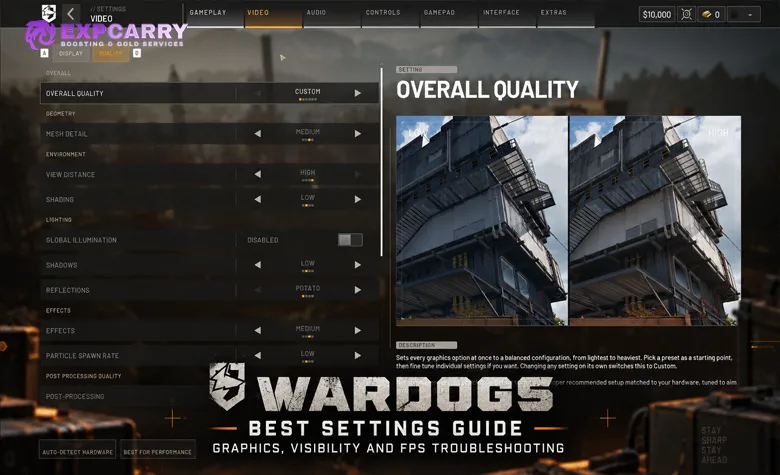
The best WARDOGS settings for Season 2 keep distant targets readable while removing effects that cost performance or obscure fights. Start at native resolution, use DLSS or FSR Quality only when you need GPU headroom, keep View Distance High and Mesh Detail at Medium or High, set Shadows and Reflections Low, disable Motion Blur and Depth of Field, and use Global Illumination Off when competitive visibility matters more than lighting quality.
Do not copy an all-Potato preset blindly. WARDOGS mixes long sightlines, 100-player battles, vehicles, destruction, indoor fights and now Season 2 rain, so lowering every setting can make the image less readable without fixing the real bottleneck. A stable frame time and clear silhouettes are more useful than the highest possible FPS counter.
Best WARDOGS Settings at a Glance
| Setting | Balanced Profile | Competitive / Visibility Profile |
|---|---|---|
| Resolution | Native | Native |
| Upscaling | Native or Quality | Quality; Balanced only when required |
| VSync | Off unless needed for tearing | Off for the latency baseline |
| NVIDIA Reflex | On when supported | On |
| Frame Generation | Test after base performance is stable | Off for baseline and aim testing |
| Mesh Detail | High | Medium or High |
| View Distance | High | High |
| Shading | Medium | Low or Medium |
| Global Illumination | On if visual quality matters and performance allows | Off |
| Shadows | Medium | Low |
| Reflections | Medium | Low |
| Effects | Medium | Medium |
| Particle Spawn Rate | Medium | Low |
| Post-Processing | Medium | Low |
| Motion Blur | Off | Off |
| Depth of Field | Off | Off |
| Lens Flare | Preference | Off |
| Bloom | Low or preference | Off |
| World Textures | High if VRAM allows | Medium or High |
| Character Textures | High if VRAM allows | Medium or High |
| Texture Streaming | Default / Medium | Change only when diagnosing streaming or VRAM pressure |
If you want one profile to start with, use the Competitive column and then raise Shadows, Global Illumination and visual effects individually until you reach the visual quality you want. Do not change six settings at once or you will not know which one affected performance.
What Season 2 Changes for Graphics and Visibility
Season 2 adds a full rain weather preset rather than treating weather as a cosmetic layer. Rain changes visibility, practical engagement range and sound across the battlefield.
Surfaces, vehicles and characters become visibly wet. Rain sounds different depending on whether you are outside, under cover, inside a building or in a vehicle. Destroying a roof can expose the interior to rain, while synchronized thunder can become loud enough to mask footsteps for every player on the server.
That means a visibility setup that felt ideal in clear Season 1 conditions should be tested again in heavy rain.
Recommended Rain Visibility Profile
- Keep View Distance High so distant movement does not disappear into an already noisy weather scene.
- Keep Mesh Detail Medium or High instead of immediately reducing geometry.
- Use Global Illumination Off for the competitive profile if dark interiors become difficult to read.
- Use Shadows Low as the normal competitive baseline before resorting to Potato.
- Disable Motion Blur, Depth of Field, Bloom and Lens Flare when image clarity is the priority.
- Adjust Brightness and Sharpness for your display rather than copying somebody else's exact values.
Do not raise audio volume aggressively just to fight the rain. Thunder masking footsteps is an intentional Season 2 mechanic, not an audio-settings bug.
Level 4 Helmet Fog, FOV and Muffled Audio Are Not Graphics Bugs
Season 2 also changes the Level 4 Helmet. Wearing it can restrict your field of view, muffle game audio and proximity chat, and cause the visor to fog while sprinting.
If your visibility suddenly becomes narrower or the image fogs only while wearing Level 4 protection, changing Shadows, Brightness or your upscaler will not remove the intended helmet effect. The same applies to muffled audio: first check your equipment before troubleshooting Windows or headset settings.
This is particularly important when comparing settings with another player. Two people using identical graphics settings can still have noticeably different visibility if only one is wearing the Level 4 Helmet.
Explore services related to this guide, selected from our Wardogs catalog.
View All Wardogs Services
Global Illumination: On or Off?
Use Global Illumination Off for maximum competitive visibility and On when visual quality matters more.
This remains one of the most important WARDOGS graphics trade-offs. Global Illumination creates much richer indirect lighting and makes interiors look more natural, but community comparisons repeatedly show that disabling it can make dark windows and rooms easier to read.
It can also cost GPU performance. That makes GI one of the first expensive visual features worth testing before you reduce View Distance or destroy texture quality.
If the Global Illumination option is missing on your system, do not edit configuration files simply to force it on or off. Availability can depend on the current client, preset and hardware configuration.
Shadows: Low vs Potato
Potato Shadows can produce the clearest possible scene in some locations, but Low is our default recommendation.
Low usually preserves enough environmental structure that the scene remains readable while removing much of the performance and visibility cost of higher shadow quality. Potato is better treated as a troubleshooting or maximum-visibility option rather than the default for every PC.
This also avoids a common mistake: a technically faster image that becomes visually harder to understand because too much depth information disappears.
DLSS, FSR and Upscaling
Start at native resolution when your GPU can hold the frame rate you need. When GPU load is the bottleneck, switch to a Quality upscaling mode before lowering the display resolution itself.
A practical order is:
- Native resolution.
- DLSS / FSR Quality.
- Balanced if Quality is still not enough.
- Performance only when the hardware or resolution genuinely requires it.
The lower you push internal rendering resolution, the more likely distant soldiers, thin geometry, foliage and fences are to lose detail or produce shimmering. That trade-off matters more in WARDOGS than in a shooter dominated by short indoor fights.
Should You Use Frame Generation?
Do not use Frame Generation to establish your performance baseline. First find out how the game performs using genuinely rendered frames.
Frame Generation can make camera movement look smoother, especially when the base frame rate is already healthy, but generated frames do not remove the rendering latency underneath them. They can also make an FPS counter look much better without fixing bad one-percent lows or periodic hitches.
For competitive tuning:
- Turn Frame Generation Off.
- Test native or Quality upscaling.
- Measure a real busy-match baseline.
- Enable Frame Generation afterwards.
- Keep it only if the additional smoothness is worth any change in aiming feel.
NVIDIA Reflex: On or On + Boost?
Start with NVIDIA Reflex On on supported hardware. It is the cleaner baseline before experimenting with additional driver or Boost behavior.
Recent community performance reports are inconsistent enough that we would not claim one Reflex mode produces the lowest latency on every WARDOGS PC. Measure the same route and the same frame-cap setup rather than trusting a single configuration copied from Reddit.
How to Show FPS in WARDOGS
There is no clearly documented dedicated WARDOGS in-game FPS counter in the current public settings references. The simplest method is Steam's own overlay.
- Open Steam → Settings → In Game.
- Find the Performance Overlay or In-game FPS Counter, depending on your Steam client version.
- Select an FPS-only view or a screen corner.
- Make sure the Steam Overlay is enabled.
- Launch WARDOGS normally through Steam.
If you need more than a number, NVIDIA, AMD and monitoring tools such as RivaTuner can display GPU load, CPU load, frame time and temperatures. Use only one performance overlay while diagnosing a problem to avoid adding unnecessary variables.
FPS vs Frame Time: Diagnose the Correct Problem
A high FPS counter does not guarantee smooth gameplay. WARDOGS players repeatedly report situations where the counter shows high frame rates but camera movement still feels uneven.
| Symptom | Likely Area to Test |
|---|---|
| FPS is consistently low | GPU/CPU load, resolution, upscaling and expensive quality settings |
| Average FPS is high but movement stutters | Frame time, one-percent lows, streaming, drivers or background processes |
| FPS falls only in full battles | CPU load, particles, players, vehicles, destruction and view distance |
| Game is smooth but players teleport | Network/server issue rather than graphics |
| Performance worsens over a long session | Memory/VRAM pressure or a build-specific issue |
| Aiming feels floaty only with Frame Generation | Test the same setup with Frame Generation disabled |
WARDOGS Stutter and FPS Drop Checklist
- Restart after GPU driver changes. Establish a clean baseline.
- Use a current GPU driver. Especially if WARDOGS or the driver software reports a compatibility issue.
- Verify the game through Steam.
- Confirm the dedicated GPU is being used. This matters particularly on laptops.
- Install the game on an SSD. Do not introduce avoidable storage latency into a large streaming game.
- Watch VRAM usage. Reduce texture quality or streaming pressure specifically when VRAM is the problem.
- Disable unnecessary overlays and background GPU workloads.
- Test without Frame Generation.
- Try a sustainable frame cap. Stable 100 FPS can feel better than constantly moving between 90 and 150.
- Compare a firing-range route with a busy Control Zone. If only the live fight collapses, your bottleneck may not be pure GPU rendering.
What About the -nogpucrashdebugging FPS Fix?
A recent community workaround using the Steam launch option -nogpucrashdebugging has produced large improvements for some WARDOGS players. Other players report different fixes, including Windows GPU selection, driver changes, shader-cache adjustments or simply disabling an overlay.
We do not recommend treating any of these as a universal performance setting. BULKHEAD has not documented the launch parameter as an official WARDOGS optimization. Community reports are useful evidence that a specific client or driver problem may exist, but they are not controlled benchmarks.
If normal troubleshooting fails and you choose to test a community launch option, record performance before and after, change nothing else, and remove the option if it produces no reproducible improvement.
FOV and Weapon Visibility
WARDOGS combines wide environments with relatively small distant targets, so maximum FOV is not automatically the competitive choice.
A wider FOV shows more peripheral information but makes distant characters occupy fewer pixels. A narrower value makes long-range targets easier to resolve but reduces peripheral awareness.
Start around the middle of the available range, then adjust based on your monitor distance and typical engagements. More importantly, stop changing it once you begin serious sensitivity testing.
Mouse Acceleration, Relative Scaling and Monitor Matching Distance
Set Mouse Acceleration to 0 if you want predictable physical mouse movement.
WARDOGS supports Legacy and Relative sensitivity scaling. Relative scaling attempts to preserve a chosen on-screen mouse distance across different zoom levels, and Monitor Matching Distance controls where on the screen that relationship is matched.
There is no single correct Monitor Matching Distance for every player. Some current guides recommend the default 100%, while others prefer 0% for stronger center-screen consistency when aiming at long-range targets. That disagreement exists because these settings describe different forms of sensitivity matching rather than a hidden accuracy boost.
Use Relative as a clean starting point, keep your ADS multiplier stable, and change Monitor Matching Distance only if you understand what aiming behavior you want to preserve.
Best Audio Settings for Season 2
Keep effects and directional game audio clearly audible, reduce music if it masks important battlefield information, and test 3D Spatial Audio with your actual headset rather than assuming it is automatically better.
Season 2 rain makes controlled audio testing even more important. Thunder can intentionally hide footsteps, while the Level 4 Helmet can intentionally muffle audio. Neither should be mistaken for a broken headset configuration.
When testing audio direction, use a repeatable location and have a teammate move around you rather than judging the setting from a chaotic firefight.
Official WARDOGS PC Requirements
| Tier | CPU | GPU | RAM | Official Target |
|---|---|---|---|---|
| Minimum | Intel Core i5-8600 / Ryzen 5 3500 | GTX 1660 / RX 590 | 16 GB | 1080p Low, 60 FPS, upscaled |
| Recommended | Intel Core i7-12700K / Ryzen 7 5700X | RTX 3070 / RX 6700 XT | 16 GB | 1440p Medium, 70+ FPS native |
| Recommended 4K Path | Intel Core i7-12700K / Ryzen 7 5700X | RTX 3070 / RX 6700 XT | 16 GB | 4K Medium, 60+ FPS upscaled |
The important detail is that the official minimum target already assumes upscaling. A GTX 1660-class system struggling at native 1440p is therefore not being tested against the published minimum scenario.
How to Benchmark WARDOGS Properly
- Record CPU, GPU, RAM, storage, driver, resolution, upscaler, Frame Generation, FOV and frame cap.
- Choose one Custom profile and keep it unchanged.
- Run the same firing-range route once to warm the scene.
- Run three measured passes.
- Record FPS and frame time, not only the highest FPS number.
- Change one setting.
- Repeat the same three passes.
- Validate the winner in a busy live Control Zone.
This methodology is more useful than copying one player's “120 FPS” result because WARDOGS workload changes dramatically with player count, vehicles, destruction, weather and location.
If FPS Is Fine but You Still Cannot See or Win Fights
Once performance is stable, stop treating every death as a graphics problem. Positioning, route selection, sightline awareness and knowing where opponents are likely to appear matter more than another five FPS.
If you want direct help separating mechanical settings from positioning and decision-making, WARDOGS Coaching is the relevant gameplay service; it makes more sense here than linking an unrelated leveling product.
Best WARDOGS Settings: Final Recommendation
For a strong Season 2 competitive baseline, use native resolution or Quality upscaling, View Distance High, Mesh Detail Medium or High, Global Illumination Off, Shadows Low, Reflections Low, Post-Processing Low, Motion Blur and Depth of Field Off, and NVIDIA Reflex On where supported.
Keep Frame Generation disabled until you establish genuine rendering performance. Test rain separately from clear weather, remember that Level 4 Helmet fog and muffled audio are intentional equipment mechanics, and use a frame-time-aware overlay when a high FPS number does not feel smooth.
For the rest of the new weather, equipment and gameplay changes, see our WARDOGS Season 2 guide.