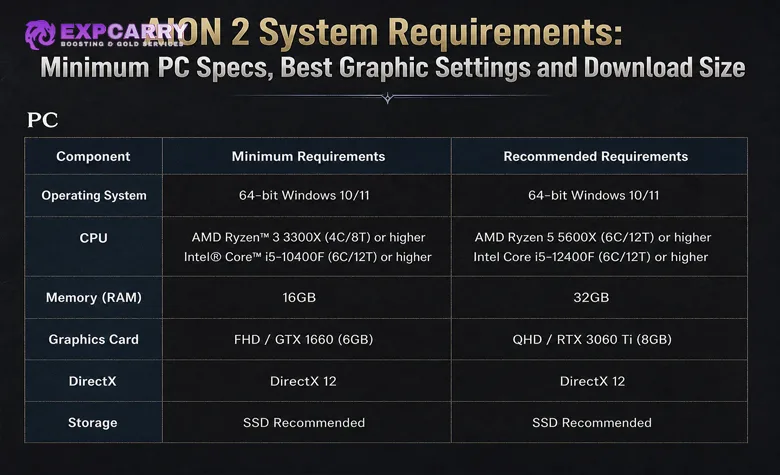
AION 2 requires a 64-bit Windows 10 or Windows 11 PC, DirectX 12, a broadband internet connection, 8 GB of RAM at minimum, and 100 GB of available storage. The minimum graphics target is a GTX 1050 Ti with 4 GB of VRAM, while the recommended target moves to an RTX 2070 with 8 GB and 16 GB of system memory. Official German Steam and Korean NC listings also name the Radeon RX 470 4 GB and Radeon RX 5700 XT 8 GB as AMD reference points. NC recommends an SSD for both tiers. The important catch is that these are modest 1080p settings targets: the current global Steam listing pairs the minimum hardware with Very Low and the recommended hardware with Low.
This guide answers the practical can I run AION 2 question without turning it into another release-date page. It compares the official minimum and recommended PC specs, explains what the 100 GB requirement actually means, and provides a setting-by-setting optimization plan based on the current Korean client and Korean player testing. Where the Korean live build and the global listing differ, the global AION 2 Steam requirements take priority for Western launch preparation.
The settings below are starting points rather than invented performance promises. NC has not published official FPS targets for either tier, nor has it released separate 1440p or 4K specifications. Korean community advice is useful because that client is already live, but menu names, available options, DLSS behavior, and performance can still differ in the Western build.
AION 2 Minimum and Recommended PC Requirements
The official specifications describe two 1080p compatibility points rather than guaranteed frame-rate tiers. A PC that merely matches the minimum should begin with the Very Low preset. The recommended hardware should begin with Low on the global Steam client, then raise individual settings only after a stable test in a crowded area.
| Component | Minimum PC | Recommended PC | What It Means |
|---|---|---|---|
| Operating system | Windows 10 or 11, 64-bit | Windows 10 or 11, 64-bit | A 32-bit OS is not supported |
| Processor | AMD Ryzen 5 2600 or Intel Core i5-10500 | AMD Ryzen 7 3700X or Intel Core i7-11700 | Large cities and mass battles can make CPU limits more visible |
| Memory | 8 GB RAM | 16 GB RAM | Eight GB leaves little room for browsers and background software |
| Graphics | NVIDIA GTX 1050 Ti, 4 GB; Radeon RX 470, 4 GB on German/Korean official listings | NVIDIA RTX 2070, 8 GB; Radeon RX 5700 XT, 8 GB on German/Korean official listings | Four GB requires conservative texture and effect settings |
| DirectX | Version 12 | Version 12 | The GPU and driver must expose DirectX 12 support |
| Storage | 100 GB available | 100 GB available | This is free-space guidance, not a confirmed compressed download size |
| Storage type | SSD recommended | SSD recommended | An HDD is not formally blocked, but an SSD is the better practical choice |
| Official 1080p preset | Very Low | Low | No official FPS number is attached to either preset |
Matching one part does not cancel a weakness elsewhere. An RTX-class GPU cannot prevent crowded-area slowdown caused by an older CPU, while 8 GB of RAM can still produce paging and hitching even when the graphics card is above minimum. Before committing limited play time to an AION 2 campaign route, run the actual client through a city, an open field, and a combat encounter rather than judging performance from character creation.
AMD Graphics Cards and the Korean Specification
The English-language Steam table currently names only NVIDIA GPUs, but this is not consistent across every official localization. The German Steam page lists the Radeon RX 470 4 GB alongside the GTX 1050 Ti and the Radeon RX 5700 XT 8 GB alongside the RTX 2070. NC's Korean download page lists the same AMD GPUs. The Korean minimum CPU references also differ slightly, using the Ryzen 5 2600X and Core i5-10500F instead of the Ryzen 5 2600 and Core i5-10500 shown on the global Steam page. These regional references are useful, but they should not be expanded into a homemade equivalency chart for every AMD, Intel, or laptop GPU.
There is another regional difference. The official Korean AION 2 download page pairs its recommended hardware with 1080p Medium, while the current global Steam listing says 1080p Low. Use Low as the safer Western starting point. Raise settings after measuring the global client rather than assuming the Korean live build and the Western release package behave identically.
Can Your PC Run AION 2?
The fastest answer comes from comparing all four limiting components: CPU, GPU, VRAM, and RAM. Do not compare only the graphics-card name. Laptop parts can also perform differently from desktop products with a similar label because power limits, cooling, memory configuration, and GPU power targets affect sustained performance.
- Below the minimum: The game may launch, but NC does not promise compatibility. There is no honest settings recipe that turns unsupported hardware into a confirmed playable system.
- At the minimum: Target 1920 x 1080 with the Very Low preset, an SSD, closed background applications, and frame generation disabled during the first test.
- Between minimum and recommended: Start at Very Low or Low, keep textures within the available VRAM, and increase model or view quality one step at a time.
- At the recommended tier: Begin at 1080p Low because that is the current global Steam baseline. Medium is a testable upgrade, not an official Western performance promise.
- For 1440p or 4K: NC has not published target hardware or FPS. Use the higher resolution only if the busiest realistic scene maintains acceptable frame-time consistency.
A short empty-field test is misleading. AION 2 is an Unreal Engine 5 MMO with large player counts, effects, vegetation, view distance, and texture streaming competing for system resources. The worst frame-time spikes usually matter more than the highest FPS number seen while standing alone.
What 8 GB and 16 GB RAM Really Change
Eight GB is the official floor, not a comfortable multitasking allowance. Close memory-heavy browser tabs, recording software, unnecessary launchers, and overlays that cause problems. If Windows begins using the page file heavily, lowering shadows will not solve the resulting storage activity and hitching.
Sixteen GB is the official recommended amount and gives the client more practical headroom. Thirty-two GB may help a heavily multitasked PC, but NC does not require it and has not published an AION 2 benchmark proving a fixed frame-rate gain. Upgrade from 8 GB to 16 GB before treating 32 GB as a mandatory target.
AION 2 Download Size and SSD Requirement
The 100 GB figure on Steam is available storage, not a confirmed compressed download. NC's Korean client page says the initial AION 2 installation may require approximately 70 GB or more, while still listing 100 GB of available space in the PC requirements. The Western package can differ in language files, launch content, patching, and compression, so the Korean installation figure should not be presented as the final global download size.
Reserve some headroom beyond the listed requirement if possible because launchers can need temporary room to download, unpack, verify, and replace files. NC has not specified an exact extra-space margin, so there is no reason to invent one. The separate AION 2 release and preload guide tracks download timing; this page remains focused on hardware and performance.
Is an SSD Mandatory for AION 2?
No. The official requirements say SSD recommended rather than required. However, an SSD is the sensible real-world choice for an MMO that streams terrain, characters, equipment, and effects while moving between busy locations. An HDD may increase loading time and can worsen asset-streaming delays or traversal hitching, but NC has not published a controlled HDD-versus-SSD benchmark with exact results.
If the PC has a small SSD and a large hard drive, prioritize installing AION 2 on the SSD. Also confirm that the selected Steam or PURPLE library is actually on the intended drive before starting a large installation.
Explore services related to this guide, selected from our Aion 2 catalog.
View All Aion 2 Services


Best AION 2 Graphics Settings for Performance and Image Quality
The best balanced setup keeps character models and combat information readable while cutting expensive scenery and effects. Korean optimization guides commonly target resolution scale, effects, model quality, view distance, vegetation, shadows, reflections, clouds, and post-processing when reducing load. A widely viewed Korean latency guide also recommends disabling frame generation when responsiveness matters and recovering performance through real rendering settings instead.
| Setting | Visual Effect | Minimum PC | Recommended PC | Mass PvP or Raid Priority |
|---|---|---|---|---|
| Resolution | Controls total screen detail | 1920 x 1080 | 1920 x 1080 first | Keep native; lower render scale before lowering desktop resolution |
| Resolution scale or upscaler | Major performance and image-quality tradeoff | Performance if needed | Quality, then Balanced if needed | Balanced or Performance when GPU frame time is unstable |
| Texture quality | Surface sharpness on armor and terrain | Low on 4 GB VRAM | Medium; test High on 8 GB | Keep unless VRAM pressure or streaming stutter appears |
| Model quality | Character and enemy detail at distance | Low | Medium | Low or Medium when crowded scenes are unstable |
| Effect quality | Spell particles, flashes, and combat density | Low | Medium | Low; one of the first settings to reduce |
| View distance | How far terrain and objects remain detailed | Low | Medium | Low in very crowded areas |
| Vegetation quality | Grass and foliage density | Low | Medium | Low |
| Shadow quality | Shadow resolution and distance | Low | Medium | Low |
| Reflection quality | Water and polished-surface reflections | Low or Off | Low | Off or Low |
| Cloud quality | Sky and volumetric cloud detail | Low | Low or Medium | Low |
| Post-processing | Bloom, blur, depth, and screen filters | Low | Low | Low for clarity |
| Vertical Sync | Removes tearing but can increase input latency | Off for testing | Off for testing | Off; use a sensible frame cap if needed |
| Frame generation | Creates additional displayed frames | Off or unavailable | Off for the combat baseline | Off when minimum input latency is the priority |
| NVIDIA Reflex | Reduces system latency on supported GeForce hardware | Use if available | On; test Boost separately | On for responsive input |
These values are starting points, not universal finals. A useful tuning order is resolution scale, effects, shadows, reflections, vegetation, clouds, view distance, and post-processing. Texture quality should move down early mainly on a 4 GB card or when monitoring shows VRAM pressure, delayed texture loading, or repeatable traversal stutter.
Settings That Preserve the Best Graphics
For a balanced image, keep native desktop resolution, use a Quality upscaling mode when available, and retain Medium model quality if performance permits. Character silhouettes, enemy telegraphs, and terrain edges matter during play. Reflections, distant shadows, dense foliage, clouds, and heavy post-processing are safer cuts because they often contribute less to combat readability.
Texture quality is often worth preserving on an 8 GB GPU if VRAM use remains stable because sharp armor and terrain contribute significantly to image quality. On a 4 GB GTX 1050 Ti or RX 470-class reference, Low textures are a safer starting point. Do not copy a Korean player's custom 8 GB or 10 GB texture-pool value into a 4 GB card.
Settings to Lower First on Weak PCs
Start from Very Low at 1080p, then check whether the limiting problem is average frame rate, input delay, or intermittent stutter. Lower the resolution scale one step if the GPU remains saturated. Reduce effect quality for crowded combat, lower view distance or model quality when large gatherings are the problem, and reduce shadows, reflections, vegetation, clouds, and post-processing for broader GPU savings.
Players using an AION 2 hourly progression route should also test a longer session. A setting that feels stable for five minutes can expose memory pressure, heat-related clock reductions, shader compilation, or asset-streaming hitches after repeated travel.
DLSS, Resolution Scale, Frame Generation, and Reflex
AION 2 supports NVIDIA DLSS and Reflex on compatible GeForce hardware. NVIDIA's official AION 2 DLSS overview documented DLSS Super Resolution, Frame Generation, Reflex, and DLSS 4 Multi Frame Generation in the Korean build. NVIDIA has since confirmed that the Western version will support DLSS 4.5. Exact features still depend on GPU generation and client version.
At 1080p, start with native rendering when performance is already comfortable. If more GPU headroom is required, test DLSS Quality first, followed by Balanced or Performance only when necessary. Korean players report that reducing the resolution scale can sharply reduce render latency during demanding bosses, but the tradeoff is a softer image. Change one step at a time so character outlines and floor telegraphs remain readable.
Why Korean Players Disable Frame Generation for Combat
Frame generation increases displayed frame rate by inserting generated frames, but those frames do not create matching game simulation updates. A widely shared Korean AION 2 latency test found substantially higher measured graphics latency with frame generation enabled and recommends disabling it for responsive mechanics while lowering other graphics settings instead.
Treat that as a community test rather than an official universal bug diagnosis. For a clean combat baseline, turn frame generation Off, enable Reflex if supported, and test real input response. Frame generation can still be tested later for smoother presentation on compatible hardware, but a higher generated FPS counter should not be treated as proof that input latency or game simulation improved.
Korean users have also tested the newer DLSS 4.5 integration. A recent community comparison of AION 2 DLSS versions reported the clearest benefits on RTX 40- and RTX 50-series hardware when using aggressive scaling modes or frame generation, while some RTX 30-series and older configurations could see little improvement or worse performance in those modes. That is another reason to compare native, Quality, Balanced, and Performance modes on the actual machine instead of copying one preset.
Best Settings for Large Battles and Boss Mechanics
Large-scale encounters combine the game's hardest workloads: many characters, animation updates, spell particles, distant objects, shadows, and network activity. A quality preset that works while questing can fail here. Build a separate combat profile around clarity and stable frame time.
- Disable frame generation: Establish real rendering performance and input response first.
- Set effects to Low: This reduces particle density and can make dangerous ground patterns easier to read.
- Lower view distance and model quality: Try these when crowded scenes are the main problem rather than open-world GPU load.
- Lower shadows, vegetation, reflections, and clouds: These are lower-priority visual features during mechanic-heavy fights.
- Reduce resolution scale only as far as needed: Performance matters, but a blurred telegraph can still cause a death.
- Use large-battle player-display optimization if available: The Korean client includes a Same Appearance for Other Players option for the Abyss that simplifies non-party character appearances to reduce rendering load. Check whether the Western client exposes the same or an equivalent option before relying on it.
Test this profile before entering coordinated AION 2 Transcendence Dungeon runs. A stable Low profile is more useful than a beautiful preset that stalls during the mechanic that decides the attempt.
How to Test AION 2 Performance Correctly
Use the same route after every change. Randomly walking through different areas makes comparisons unreliable because weather, population, effects, and asset loading change the workload. Record the setting, location, and problem before changing anything else.
- Reset to the official baseline: Very Low for minimum hardware or Low for recommended global hardware at 1080p.
- Test an empty field: This reveals basic GPU headroom but is not the final result.
- Enter a populated city: Watch for CPU pressure, RAM use, texture pop-in, and traversal stutter.
- Run a real combat scene: Include several enemies, party effects, camera movement, and ground mechanics.
- Change one option: Keep it only if the same route improves without unacceptable visual loss.
- Repeat after a longer session: Confirm temperatures, clocks, memory use, and stability rather than relying on a short peak.
Use frame-time consistency as the main signal. A counter can show a high average while the game still feels poor because individual frames arrive unevenly. Generated frames can make the displayed FPS number look better without fixing CPU stalls, shader compilation, network delay, or insufficient RAM.
Common AION 2 Performance Problems
Different symptoms require different fixes. Dropping every option to its minimum can damage visibility while leaving a CPU, storage, or memory problem untouched.
- Low FPS everywhere: Lower resolution scale, shadows, reflections, clouds, vegetation, and post-processing. Check GPU utilization and temperature.
- Only crowded areas are slow: Reduce view distance, model quality, effects, and other-player rendering options where available. This pattern can indicate a CPU-side or draw-call-heavy limit.
- Sharp pauses while moving: Confirm the game is on an SSD, reduce textures if VRAM is full, close background tasks, and repeat the same route after shader and asset loading settles.
- Blurry image: Move the upscaler from Performance to Balanced or Quality, keep native display resolution, and avoid excessive sharpening.
- High displayed FPS but sluggish response: Disable frame generation and V-Sync, enable Reflex if supported, and use a stable frame cap where appropriate.
- Crashes after changing graphics: Return to an in-game preset, remove unsupported overrides, verify files, and test without overlays or overclocks.
Avoid blindly copying engine.ini packages made for a different GPU, VRAM size, resolution, or client patch. Korean players share useful custom configurations, but those files can contain hardware-specific texture pools and hidden rendering commands. In-game controls are the safer Western-launch recommendation because they can be reset easily and are less likely to conflict with updates.
AION 2 System Requirements FAQ
These answers cover the most common searches about RAM, storage, SSD use, graphics cards, and graphics settings without attaching unconfirmed frame-rate promises to the official hardware tiers.
Can I run AION 2 with 8 GB RAM?
Yes, 8 GB is the official minimum. Close unnecessary applications and use an SSD if possible, but expect less multitasking headroom than the recommended 16 GB configuration.
Is 16 GB RAM enough for AION 2?
Yes. NC lists 16 GB as recommended. Thirty-two GB can help a heavily multitasked system, but it is not an official requirement.
Does AION 2 require an SSD?
No. The official wording is SSD recommended. An SSD is still the practical choice for faster loading and smoother asset streaming.
How large is the AION 2 download?
The global Steam page requires 100 GB of available space but does not state the compressed download size. The Korean client may initially require about 70 GB or more, which is not a guaranteed Western download figure.
Can a GTX 1050 Ti run AION 2?
It is the official minimum NVIDIA GPU with 4 GB of VRAM. NC pairs that tier with 1080p Very Low and does not publish a guaranteed FPS.
What settings should an RTX 2070 use?
Start at 1080p Low because that is the current global Steam recommendation. Test Medium model and texture quality while keeping expensive shadows, reflections, clouds, and post-processing conservative.
Should I enable AION 2 frame generation?
Keep it Off for the first combat test. It can improve displayed smoothness on supported GPUs, but Korean testing reports significantly higher render latency with frame generation enabled in some configurations.
Are the Korean optimization settings final for the Western client?
No. They are useful observations from a live build, not Western guarantees. Menu options, DLSS integration, patches, and hardware behavior can differ.
Can AION 2 run at 1440p or 4K?
Possibly on stronger hardware, but NC has not published official 1440p or 4K specifications or FPS targets. Test the actual client before choosing a permanent resolution.
Conclusion
AION 2's current global Steam floor is a Ryzen 5 2600 or Core i5-10500, GTX 1050 Ti 4 GB, 8 GB RAM, DirectX 12, broadband internet, and 100 GB of available space on 64-bit Windows 10 or 11. The recommended tier is a Ryzen 7 3700X or Core i7-11700, RTX 2070 8 GB, and 16 GB RAM. Official German Steam and Korean NC listings additionally name the Radeon RX 470 4 GB and RX 5700 XT 8 GB. SSD is recommended rather than formally mandatory, and 100 GB describes required free space rather than a confirmed compressed global download.
Begin with the official 1080p preset, then tune for the workload that matters. Preserve textures and models when VRAM and performance allow, lower effects, shadows, reflections, vegetation, clouds, and post-processing first, and reduce resolution scale only as far as combat readability permits. Keep frame generation Off for the initial combat baseline, test Reflex on supported hardware, and remember that the Western version is confirmed to support DLSS 4.5. Judge the final result in a crowded city and a real fight instead of an empty field.