
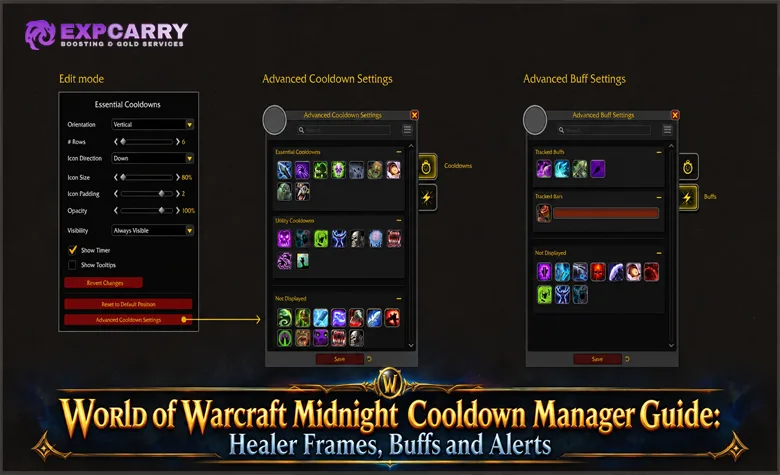
World of Warcraft Midnight gives the built-in Cooldown Manager enough control to replace a large part of the old personal cooldown-tracking setup, but only if you configure it around your role instead of leaving every default icon on screen. The current live system can separate essential and utility cooldowns, display buffs as icons or bars, track supported target debuffs, show external defensives, trigger sound and visual alerts, and, since Patch 12.1, track trinkets, potions, and racial ability cooldowns and durations.
This World of Warcraft Midnight Cooldown Manager guide explains how to build a practical layout for healer, tank, and DPS characters. It also covers healer raid frames, Group Buff Filter settings, buff priorities, target debuffs, potion and trinket tracking, alerts, imported layouts, and the native UI limits that still matter when deciding whether an addon is actually necessary.
What the Midnight Cooldown Manager Can Track Now
The Cooldown Manager began as a basic tracker, but Midnight turned it into a configurable combat HUD. Blizzard now lets players choose which supported spells and buffs appear, reorder them, move cooldowns between Essential and Utility groups, show buffs as icons or bars, search for abilities, and configure abilities that are not currently talented. Midnight also added multiple layouts, layout sharing and importing, target-debuff states, sound and visual alerts, and a separate External Defensives tracker.
Patch 12.1 expanded the system again. Trinkets, potions, and racial ability cooldowns and durations can now be tracked through the native interface, which removes one of the biggest gaps the original Cooldown Manager had. Raid and party frames can now use independent buff and debuff icon sizes and border scales, while healers can assign visual alerts to specific group buff spells through the Group Buff Filter UI. The official Patch 12.1 notes are important here because older Midnight setup guides published before Curse of Ula'tek will not include these item and healer-frame options.
The system is specialization-aware, but it is not a universal combat logic builder. You configure from the abilities and states Blizzard exposes for that specialization. The goal is therefore to remove low-value information, not to recreate every possible WeakAura condition inside the native UI.
How to Enable and Open Advanced Cooldown Settings
The fastest way to configure the system is through Edit Mode. Open the Game Menu, enter Edit Mode, select a Cooldown Manager frame, and open Advanced Cooldown Settings. You can also reach Advanced Cooldown Settings through Options under the gameplay settings. If the Cooldown Manager itself is disabled, enable it first in the game options before trying to arrange individual frames.
The advanced configuration window is where the real setup happens. Spells can be dragged into different groups or hidden, while buffs can be assigned to icon or bar presentation. The useful workflow is to choose what is visible, reorder it, decide which frame owns it, and hide anything that does not change a combat decision.
- Enable the Cooldown Manager. Confirm that its HUD elements appear for the current specialization.
- Open Advanced Cooldown Settings. Do the ability selection before spending time on exact screen placement.
- Move core rotational and major defensive abilities into Essentials. These should be readable without searching the screen.
- Put interrupts, movement, crowd control, and situational buttons in Utility. They matter, but they should not visually compete with the main rotation.
- Choose icon or bar tracking for buffs. Short proc checks usually work well as icons; duration-sensitive windows are often easier to read as bars.
- Hide information you already read reliably from another element. Duplicate tracking is one of the fastest ways to make the native UI noisy.
Do not begin by downloading someone else's layout. Build the priority groups first, then use imports to compare structure after you understand what each frame is solving.
Cooldown Manager Frames and What Each One Should Do
The default system separates information by purpose. The cleanest setup keeps those purposes distinct instead of turning every frame into another copy of the action bars.
| Frame | Best Information | What to Avoid |
|---|---|---|
| Essential Cooldowns | Core rotational cooldowns, major offensive windows, critical personal defensives, role-defining abilities | Minor utility buttons that are rarely pressed |
| Utility Cooldowns | Interrupts, mobility, crowd control, dispels, situational defensives, utility racials | Every spell merely because it has a cooldown |
| Tracked Buffs | Short procs, self-buffs, important class states that need quick yes-or-no recognition | Long passive effects that never change your next action |
| Tracked Bars | Duration-sensitive buffs or effects where remaining time matters more than simple presence | Several tiny bars that all communicate low-priority information |
| External Defensives | Supported major defensive effects currently active on your character | Trying to customize the curated spell list; Blizzard controls which effects appear |
External Defensives deserve their own space because they answer a different question from personal cooldowns. A tank needs to know whether a healer has already committed an external before pressing another major defensive. A DPS player targeted by a dangerous mechanic can use the same information to avoid overlapping a personal immunity or damage reduction unnecessarily.
Explore services related to this guide, selected from our World of Warcraft catalog.
View All World of Warcraft Services
Best Screen Layout for Healer, Tank, and DPS
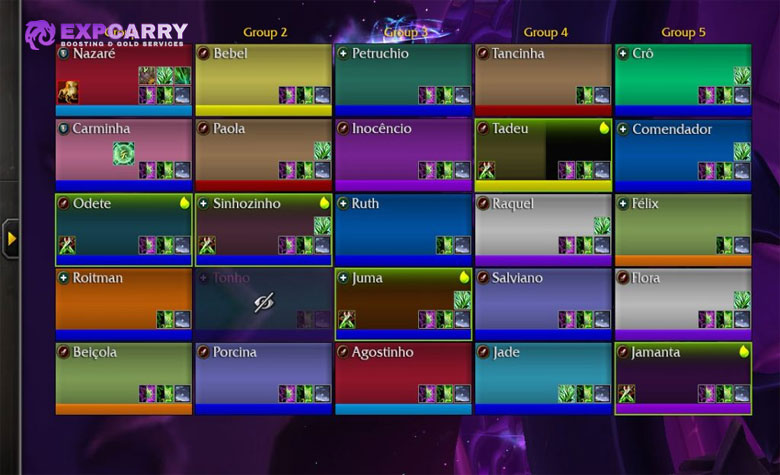
Role changes where your eyes spend most of combat. A healer repeatedly reads party or raid frames, a tank watches enemies and incoming damage, and a DPS player usually centers more attention on the target and rotational resources. The Cooldown Manager should sit close to that existing focal area rather than forcing repeated eye travel.
| Role | Main Focal Area | Cooldown Manager Priority | Secondary Tracking |
|---|---|---|---|
| Healer | Party or raid frames near center | Healing cooldowns, dispel, emergency tools, mana-related windows | Group buffs, raid-frame alerts, trinkets, potion, External Defensives |
| Tank | Character, target, boss timeline, enemy nameplates | Active mitigation, major defensives, taunt, interrupt | External Defensives, target debuffs, defensive trinket and potion |
| DPS | Target, character, resource display | Major offensive cooldowns and high-impact rotational abilities | Proc buffs, target debuffs, interrupt, potion and trinket windows |
Keep the physical distance between related information small. A healer who places raid frames at the bottom edge and Cooldown Manager near the character model may spend every global moving their eyes between two distant zones. A tank who places defensive cooldowns far from Boss Timeline creates the same problem when preparing for predictable damage.
If a layout looks clean on a target dummy but becomes difficult to read during real raid mechanics, a WoW raid coaching session is one way to review cooldown timing and information placement in actual pulls. The same test can be done in normal guild progression: watch where your eyes move during damage events, then bring the relevant frames closer together.
Healer Setup: Build Around Raid Frames First
Healer configuration should start with party and raid frames, not the Cooldown Manager. Your most important question is usually who needs healing, who has a dangerous debuff, and which of your healing effects are already active. Once that information is readable, place the Cooldown Manager close enough that emergency cooldowns can be checked without abandoning the frames visually.
Midnight raid frames already improved dispel visibility, heal absorbs, incoming healing, shields, role debuffs, and large defensive display. Patch 12.1 then added more healer-specific control. Buff and debuff icons on raid and party frames can use independent sizes and border scales, healers can configure or hide displayed healing buffs, and specific group buff spells can receive visual alerts through the Group Buff Filter UI.
Configure the Group Buff Filter Before Adding Alerts
The Group Buff Filter should answer one narrow question: which of your own group-facing healing effects must you see on each player to make the next healing decision? Do not turn it into a list of every beneficial aura on the group. Prioritize effects whose presence, absence, or remaining duration directly changes which spell you cast next.
For a heal-over-time specialization, that can mean keeping the most important maintenance effects visible while hiding low-value passive buffs. For a shield or setup-based healer, prioritize effects that determine whether a target is already prepared for the next damage event. If several icons compete for the same visual space, reduce the list before increasing every icon size.
Blizzard also lets healers assign visual alerts to specific supported group buff spells through this interface. Use that for effects where missing the buff matters more than knowing the exact remaining seconds. A visual alert is more useful when it changes your next cast, not when it merely confirms that a passive effect exists.
Healer Cooldown Manager Priorities
Put raid healing cooldowns, emergency single-target cooldowns, and the abilities that define your healing cycle in Essentials. Dispel, interrupt if your class has one, movement, crowd control, and situational utility belong in Utility. Duration-sensitive self-buffs or healing windows can sit in Tracked Bars so they remain readable next to the frames.
Do not duplicate every heal-over-time effect in both raid frames and the personal Cooldown Manager. Raid frames answer which player has the effect. The Cooldown Manager is better for your own spell readiness, personal buffs, and supported target states. Duplicating the same information in both places wastes screen space without improving decisions.
Healer Raid Frame Settings Worth Changing
Midnight's default raid frames have several options that should be reviewed before deciding they are unusable. Under the Raid Frames interface settings, dispellable debuffs can be limited to effects you can actually remove, role-specific debuffs can be enlarged, and the most recent active major defensive can be centered on the frame. Edit Mode also provides layout templates, opacity control, icon sizing, and the Frame Size setting for party and raid frames, which Patch 12.1 allows to scale up by 100%.
- Dispellable Debuff Indicator: use Dispellable By Me when healer information is getting buried under debuffs you cannot interact with.
- Role Debuffs: enlarge healer dispels and tank-swap mechanics so they are not visually equal to minor effects.
- Center Big Defensives: useful when you want to know that a target already has a major defensive active before committing another external.
- Buff and debuff size: set these independently so your healing buffs do not compete with dangerous debuffs for the same emphasis.
- Frame scale: make the health area large enough to read quickly, but do not enlarge it until the raid grid pushes the Cooldown Manager too far away.
The strongest healer layout is not the one with the most visible auras. It is the one where health, actionable debuffs, your important group buffs, and emergency cooldowns can all be read with minimal eye movement.
Tank Setup: Defensives, Externals, Taunt, and Boss Timing
Tanks should organize the Cooldown Manager around damage planning. Essential Cooldowns should contain active mitigation and major personal defensives that determine whether the next tank hit is safe. Taunt, interrupt, mobility, and crowd control belong in Utility unless a specific encounter makes one of them important enough to promote.
The External Defensives frame is especially useful for tanks. Blizzard describes it as a curated tracker for major external defensive effects; the list is controlled by the game rather than manually populated. Place it near your personal defensives so you can see when another player has already protected you before stacking another major cooldown.
Boss Warnings and Boss Timeline should also sit close to the tank defensive area. Cooldown Manager tells you what is ready; the boss timeline tells you when the damage is coming. Those two pieces of information are more useful together than either one alone.
Tank Alerts Should Warn About Readiness, Not Every Button
A tank can quickly make the interface unusable by assigning a sound to every defensive, taunt, interrupt, and utility spell. Use alerts for the few cooldowns where missing readiness changes the next pull or boss event. A major defensive becoming available can justify a sound. A short rotational ability becoming available every few seconds usually does not.
Target-debuff tracking can also help tanks when a supported offensive or mitigation-related debuff needs to remain on the current enemy. If the effect supports pandemic tracking, the Cooldown Manager can visually distinguish the safe refresh window. Do not add target debuffs that you never actively manage.
DPS Setup: Offensive Windows, Procs, Target Debuffs, and Utility
DPS layouts work best when the center of the screen contains only the cooldowns that affect the next damage window. Major offensive cooldowns and high-impact rotational abilities belong in Essentials. Interrupt, movement, personal defensive, crowd control, and encounter utility usually belong in Utility.
Tracked Buffs should be reserved for procs and short class states that change spell priority. If remaining duration changes whether you can fit another cast inside the window, move that effect to Tracked Bars instead. This is more useful than tracking every passive damage buff simply because it appears in the supported list.
The Midnight pre-expansion UI update also added current-target debuff tracking and pandemic states for supported effects. A red border can indicate the pandemic refresh range, and supported effects can receive alerts for that state. This is valuable for DoT specializations because it replaces part of the old need for a separate aura package while still keeping the decision visible near core cooldowns.
The Midnight pre-expansion notes also confirm that layouts can be saved, shared, and imported, and that sound or visual alerts can be attached to supported cooldown events. These features make it practical to maintain a clean raid layout and a separate dungeon layout instead of forcing one HUD to solve every content type.
Tracking Trinkets, Potions, and Racials in Patch 12.1
Patch 12.1 removes one of the most obvious reasons players previously created extra item bars. The Cooldown Manager can now track trinkets, potions, and racial ability cooldowns, so offensive consumables and on-use gear can live beside the cooldowns they are meant to align with.
For DPS, place offensive trinkets and the combat potion near major burst cooldowns so you can see whether the next damage window is fully available. For tanks, defensive or utility trinkets should sit closer to personal defensives. Healers should place throughput trinkets near major healing cooldowns and keep health potions separate from throughput decisions so emergency survival remains visually distinct.
Do not interpret item tracking as a reason to display every equipped effect. The native tracker is most useful for actionable cooldowns and supported durations. A passive proc that never changes your next button does not need equal visual weight to an on-use trinket that must align with a two-minute burst window.
Patch 12.1 also lets players ping supported spells and items, including trinkets, health potions, combat potions, and healthstones. In coordinated groups, this can communicate readiness without typing the remaining cooldown. Players practicing this timing in dungeons can use WoW Mythic+ coaching as one route for reviewing pull-by-pull cooldown use, but the important UI step is simply to keep item readiness next to the cooldown it supports.
How to Configure Cooldown Manager Alerts Without Creating Noise
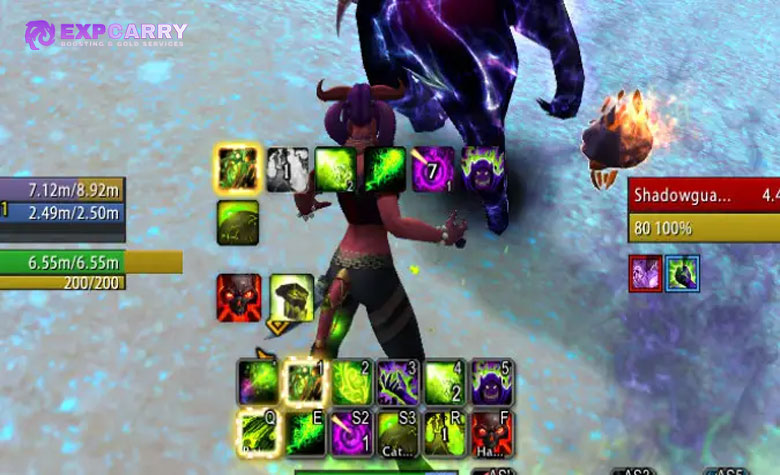
Midnight alerts are useful because they are attached to individual supported abilities rather than globally applied to the whole frame. Right-click a cooldown in Cooldown Settings and create an alert for the event you care about. Blizzard allows up to three alerts on one cooldown and supports both sound and visual presentation, including Text-to-Speech for sound alerts.
Current alert events include states such as a cooldown becoming available or entering cooldown, aura application and removal, and pandemic-range events for supported target debuffs. Visual options include effects such as a flash or animated border, while sound alerts can use normal sounds, the newer Short sound category, or Text-to-Speech where supported.
A Practical Alert Priority
Use alerts only when the information cannot be missed safely. A healer may want a sound when a major emergency cooldown becomes ready again or a critical buff disappears. A tank may want a distinct cue for a major defensive becoming available before the next dangerous pull. A DPS player may want a visual alert when an important target debuff reaches its refresh window.
- Start with one alert. Pick the highest-value event you currently miss in combat.
- Choose either sound or visual first. Do not duplicate both unless the event is genuinely critical.
- Play real content. A target dummy cannot tell you whether the alert disappears under raid audio and boss warnings.
- Add the second alert only if the first solved a real problem. Avoid building a soundboard before testing readability.
- Use Text-to-Speech sparingly. Spoken cues are clear but can collide with Boss Warnings, voice chat, and accessibility audio.
If five different abilities announce themselves every pull, the problem is no longer missing information. It is alert competition.
Profiles, Imports, and Separate Raid and Mythic+ Layouts
Midnight supports multiple Cooldown Manager layouts and allows players to share or import them. This is useful because raid, Mythic+, solo play, and PvP often need different visual priorities even on the same specialization.
A raid healer may want the Cooldown Manager compressed beside a larger raid grid, while the same healer in Mythic+ can use larger party frames and give interrupts, crowd control, and personal utility more screen space. A DPS raid layout may emphasize long offensive cycles, while a dungeon version keeps interrupt and defensive readiness closer to the center.
Imported profiles should be treated as starting points. Talent choices, supported buffs, trinkets, and personal screen scale can all make another player's spacing wrong for you. After importing, review every visible spell and remove anything that does not change one of your decisions.
Cooldown Manager Versus Raid Frames Versus External Defensives
These systems overlap visually but solve different problems. The Cooldown Manager primarily tracks your supported cooldowns, buffs, items, and target states. Raid frames show the condition of group members, actionable debuffs, healing buffs, and large defensive information. External Defensives shows supported major protection currently affecting your character.
For healers, do not try to move all raid-frame information into the Cooldown Manager. For tanks, do not expect raid frames to replace the personal defensive tracker. For DPS, do not turn target-debuff tracking into a second enemy nameplate system. The clean native setup works because each element has a limited job.
What the Native Cooldown Manager Still Does Not Replace
The current interface is substantially stronger than it was before Midnight, but it is still curated. Blizzard decides which spells, buffs, target states, items, and External Defensive effects are exposed. You cannot use the native tool as an unrestricted rules engine that invents arbitrary combat conditions from any live data you want.
Community reports still point out cases where players want resource-threshold alerts, compound conditions that depend on several combat states, or other logic that the supported alert types do not provide. These are player observations rather than a promise from Blizzard that a feature will never be added. The important distinction is that a missing custom condition is different from the Cooldown Manager being unable to track anything useful.
Midnight also changed what combat addons can know and automate, so a third-party addon cannot always restore every pre-Midnight aura behavior. Blizzard explains that direction in its Midnight combat addon philosophy, which separates presentation tools from combat logic that reads protected live states.
The ExpCarry Midnight combat addon guide covers the practical addon fallout and replacement strategy. If your goal is cosmetic restructuring or a supported filtered aura presentation, current addons still have room to help; if your goal is unrestricted combat logic, the limitation is intentional.
Common Cooldown Manager Setup Mistakes
Most bad layouts fail because too much information is technically visible. The test is not whether you can fit another icon on the screen. The test is whether you can identify the right action during a dangerous mechanic without searching.
- Tracking every supported spell: visibility is not usefulness. Hide abilities that do not change immediate decisions.
- Duplicating the action bars: the Cooldown Manager should prioritize readiness and state, not copy every button already visible below.
- Putting healer raid frames far from cooldowns: repeated eye travel makes both systems harder to use.
- Using Tracked Buffs for effects that need duration awareness: use bars when remaining time matters.
- Ignoring External Defensives as a tank: overlapping externals and personal cooldowns can waste group resources.
- Giving every cooldown a sound: alerts lose meaning when normal rotation creates constant audio.
- Leaving old pre-12.1 item trackers unchanged: supported trinkets, potions, and racial cooldowns can now be handled by the native system.
- Copying an imported profile without checking talents: supported abilities and priorities can change with specialization and build.
- Expecting healer raid frames to show every aura equally: use the Group Buff Filter to decide what actually matters.
- Testing only on a target dummy: the layout must survive boss warnings, group frames, nameplates, movement, and combat audio at the same time.
The easiest cleanup method is to remove one element whenever two parts of the UI answer the same question. Keep the version that is closest to where your eyes already are during that role's normal gameplay.
Recommended Native UI Setup Order
Building the UI in the right order prevents the Cooldown Manager from forcing every other element into a bad position. Start with the information you must read continuously, then place cooldown information around it.
- Place the Personal Resource Display and target information. Establish the central combat area.
- Place party or raid frames. Healers should do this before any cooldown positioning.
- Place Boss Timeline and Boss Warnings. Keep predictable encounter timing readable without covering the character.
- Place Essential Cooldowns. Keep the highest-value rotational and defensive information nearest the focal area.
- Add Utility Cooldowns. Put them close enough to check, but visually below Essentials.
- Add Tracked Buffs and Bars. Use only effects that change spell priority or timing.
- Enable External Defensives where useful. Tanks benefit most, but any role can use the information.
- Add trinkets, potions, and racials. Align them with the cooldown windows they support.
- Add alerts last. Alerts compensate for information you still miss after the visual layout is working.
Players who want to test the finished setup under current raid pressure can use a WoW raid progression run as one practical environment, but ordinary Normal, Heroic, LFR, or guild pulls work just as well for UI testing. The important part is to test with actual mechanics and group information present.
World of Warcraft Midnight Cooldown Manager FAQ
The questions below cover the current Midnight behavior most likely to be confused with older Cooldown Manager guides.
Can the Midnight Cooldown Manager track trinkets?
Yes. Patch 12.1 added native trinket tracking to the Cooldown Manager.
Can the Cooldown Manager track potions?
Yes. Current Midnight tracking includes potions, and supported potions can also be pinged through the Cooldown Manager.
Can I track racial abilities?
Yes. Patch 12.1 added racial ability cooldown and duration tracking.
Can healers choose which buffs appear on raid frames?
Yes. Current healer raid frames allow healing buffs to be configured or hidden, and the Group Buff Filter can assign visual alerts to supported group buff spells.
Can I move spells between Essential and Utility Cooldowns?
Yes. Advanced Cooldown Settings allows supported cooldowns to be reordered and moved between Essential, Utility, and hidden categories.
Can buffs be shown as bars instead of icons?
Yes. Supported buffs can be assigned to icon or bar presentation through Advanced Cooldown Settings.
Can the Cooldown Manager alert me when a buff is applied or removed?
Yes. Midnight supports sound and visual alerts for supported aura events, including applied and removed states. Up to three alerts can be assigned to one cooldown.
Can it track target DoTs and debuffs?
Supported current-target debuffs can be tracked, including special states such as pandemic range where applicable.
Can I see external defensives?
Yes. External Defensives is a separate native tracker in Edit Mode. Its supported spell list is curated by Blizzard rather than freely customized.
Do I still need WeakAuras or a cooldown addon in Midnight?
Not for every player. The native Cooldown Manager now covers many common cooldown, buff, debuff, item, and alert needs. Addons remain useful for supported presentation and specialized layouts, but Midnight's combat API restrictions mean they cannot always recreate old unrestricted combat logic.
Conclusion
The best World of Warcraft Midnight Cooldown Manager setup is role-specific and deliberately small. Healers should build around readable party or raid frames, use Group Buff Filter for important healing effects, and keep emergency cooldowns close to the frames. Tanks should center personal defensives, External Defensives, taunt, and boss timing. DPS players should prioritize offensive windows, relevant procs, target debuffs, interrupt, and item alignment.
Patch 12.1 makes the native setup much more complete by adding trinket, potion, and racial ability tracking, more raid-frame control for healers, and additional sound options. Configure supported abilities first, place frames around the information your role reads most often, and add sounds only after the visual layout has been tested in real combat. A clean Cooldown Manager should reduce the number of places you need to look, not create another dashboard competing for attention.